본문으로 건너뛰기

Prompts

Features section prompts

A features section has one job: let someone skim and understand what you offer in a few seconds. The common AI result is three identical cards with an icon each, which says nothing about which feature matters most. These prompts set up a hierarchy, with one larger feature, supporting ones and a clear reading order, and they describe how the layout changes from a phone to a wide screen. Use them for product pages, service lists or a changelog-style overview, and swap in your own feature names and one-line descriptions.

  • Pastel Bento Features Grid preview

    FeaturesWith a plan

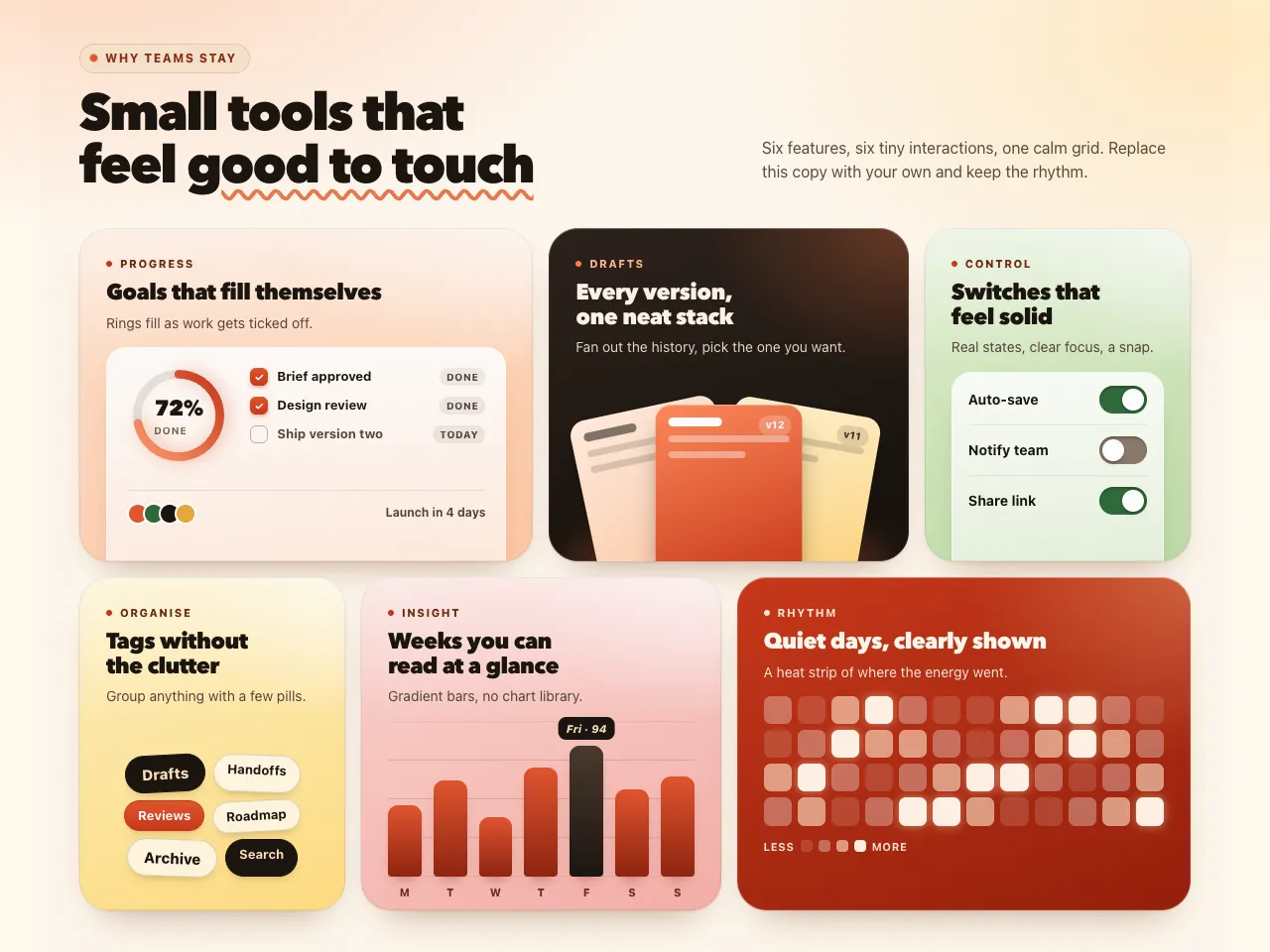
    Pastel Bento Features Grid

    A premium six-tile bento features section in warm pastels, deep ink and tomato. Each tile carries an illustrated mini interface that bleeds off its edge: a progress card, a fan of version cards, switches, tags, a bar chart and a heat strip.

    • Bold
    • Playful
    • Cl
    • Cu
    • v0
    • Lo
    • Bo
    • GP
    View
  • Loam Liquid Features preview

    FeaturesWith a plan

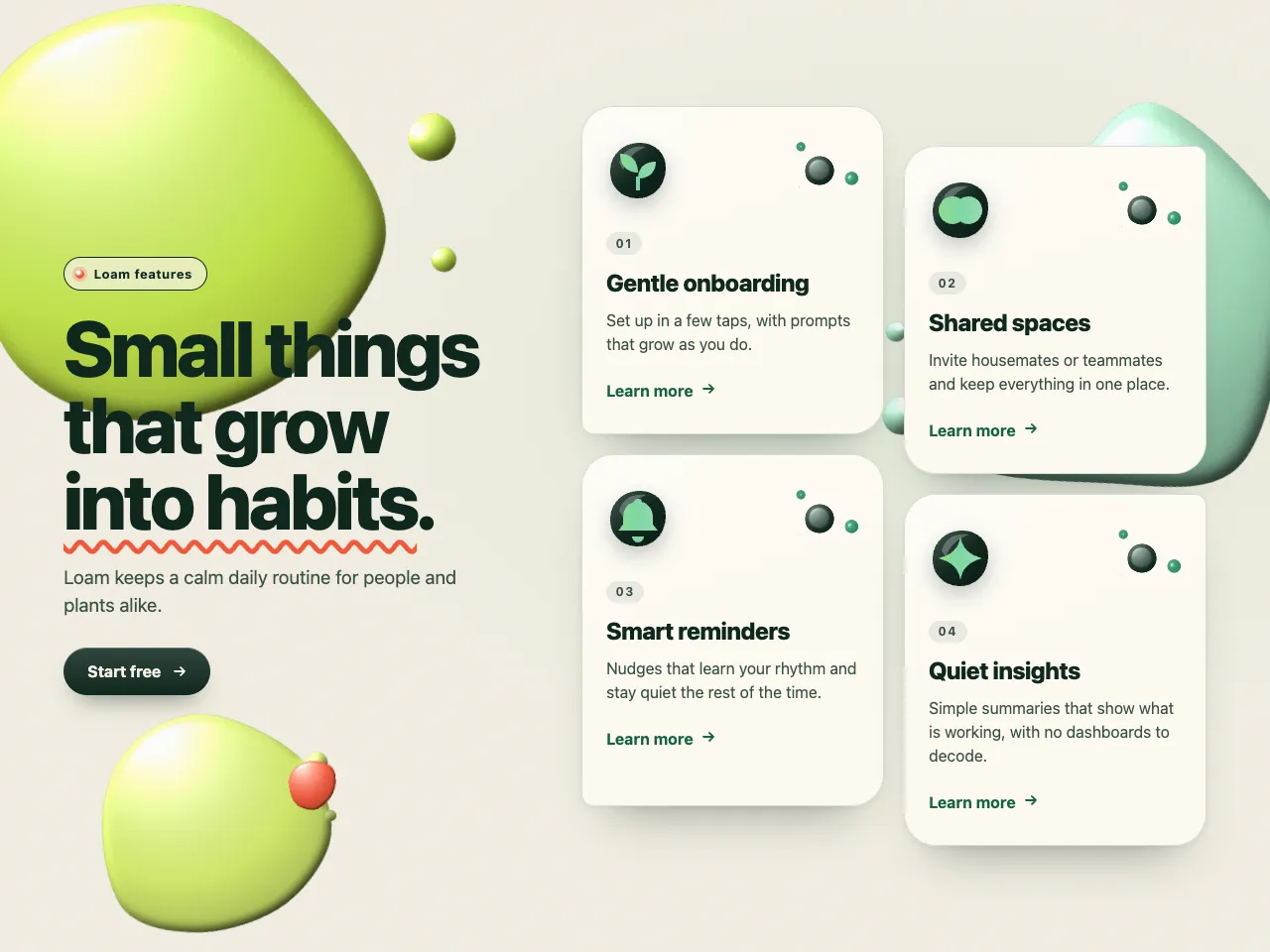
    Loam Liquid Features

    A playful, premium features section: glossy liquid SVG blobs with lit gradients and specular highlights behind four cards, gooey beads that merge on hover or focus, and glossy icons that reveal a flowing gradient through a clip mask.

    • Playful
    • Bold
    • Cl
    • Cu
    • v0
    • Lo
    • Bo
    View

See every prompt

Questions

How many features should a features section show?

Fewer than you think. Lead with the few that decide whether someone signs up, and link to a fuller page for the rest. A layout that gives one feature more room than the others tells the reader where to look first.

Can I use my own icons or images?

Yes. The prompts use simple inline shapes as placeholders. Tell your AI tool which icon set or images to use, and ask it to keep the spacing and alignment from the prompt.